My blog has moved!

You should be automatically redirected in 6 seconds. If not, visit
http://www.csharpblog.net/
and update your bookmarks.

Monday, 18 May 2009

Visual Studio 2010 Beta 1 - Review

Just out for MSDN subscribers – Visual Studio 2010 Beta 1. Non subscribers don’t despair. General availability for Visual Studio 2010 Beta 1 will start this Wednesday.

Over the next few weeks I will be posting here my experiences with Visual Studio 2010 Beta 1. For now here’s a collection of screenshots from the Setup. Notice the nice change in allowing users to clearly select whether their are developing managed or unmanaged code!

setup1

setup2

setup3

setup4

Stay tuned!

Saturday, 2 May 2009

Windows 7 – XP Mode & Windows Virtual PC

Windows 7 RC is out, and as promised here’s a first look at XP Mode and Windows Virtual PC. There seems to be some confusion over some of the terms & names used in this technology. So here’s a quick explanation:

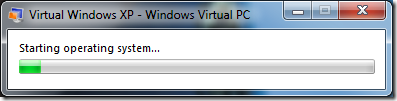
XP Mode – Currently in Beta and available for download from MSDN. It requires Windows 7 and it is nothing more than a pre-installed Virtual Machine Image File. Below are a couple of screenshots of the installation process.
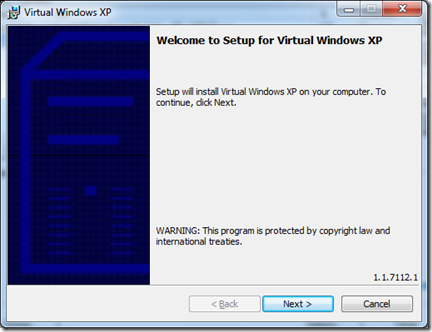
setupxpmode1 setupxpmode2

So as you can see XP Mode is called Virtual Windows XP. Simply a pre-configured virtual machine image. So far that doesn’t sound too impressive right? Hold on and I think you will be pleasantly surprised.

Windows Virtual PC – is the second Beta download available from MSDN. It is available for XP SP3, Vista and Windows 7. Simply this is a newer version of Virtual PC simply named Windows Virtual PC. Unlike previous versions, this one does take advantage of virtualisation features of processors such as Intel VT etc. Under Windows 7, Virtual PC integrates really easily with XP Mode.

Using XP Mode with Virtual PC

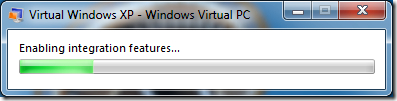
Once everything is installed, it really is extremely easy to get started. Initially, Virtual PC will initialise the XP Mode image and this can take a few minutes.

firstrun

firstrun2

During the initialisation, Virtual PC enables a feature called “Integration Services”. This really is quite clever but nothing new in the virtualisation space. It allows you to run applications installed on the XP Mode machine directly from the host operating system. It also goes a step further to even integrate notifications in the host’s system tray area. More about this later.

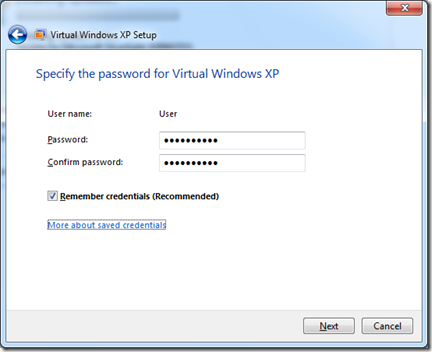
Finally a quick wizard asks you a few easy questions and boom!
eula

startup1

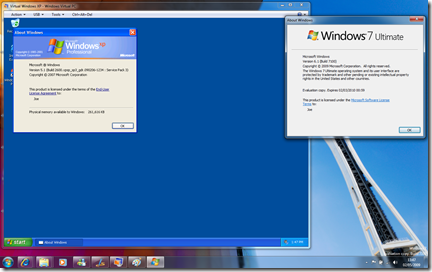
Once you are up and running you will find yourself in familiar territory, if you have used Virtual PC in the past.
full1

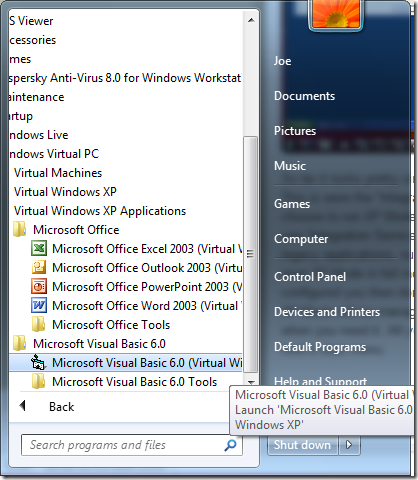
It is worth noting that the default settings of XP Mode, are set to give the virtual machine 256MB of RAM. This is configurable as most of the other settings XP Mode like in any other Virtual Machine setup with Windows Virtual PC. So far it looks pretty simple and nothing we haven’t seen before. This is were the “Integration Services” come into play. You can choose to run XP Mode as a full desktop, shown above, or use “Integration Services”. If you need to configure and/or install any legacy applications, such as Office 2003 or VB 6, then you would start XP Mode in full mode. Once everything is installed and configured you then don’t need to worry about starting it up again. XP Mode will be managed in the background for you and be ready when you need it. All your installed applications will appear in your host’s start menu.
startmenu1

When you are ready just fire up any of these apps. The application will be executed inside XP Mode but its output redirect to the Window Manager of the host and look as if it is part of your main operating system. If the virtual machine is already running you will be prompted that it needs to be closed. This takes seconds and allows the application to run seamlessly inside the host operating system.
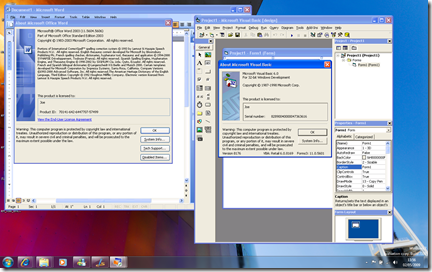
full2

As you can see above, Word 2003 and VB 6 are running under Windows 7’s XP Mode.

Conclusion

This is an extremely important feature that Microsoft is adding to Windows 7. It will help businesses of any size to ensure that their current investment in software is secure and that they can continue to operate in the future, despite moving to new operating system. It will also help Microsoft redeem itself of all the compatibility issues Vista had with various software applications. For a Beta version running under a Release Candidate version of Windows, I was extremely impressed with the performance and overall simplicity of XP Mode & Virtual PC. I can only hope and predict that Microsoft will integrate this even further, to the point that when an incompatible application with Windows 7 is installed, it will offer users an easy way to move it to XP Mode.

You can read more about XP Mode & Windows Virtual PC on Microsoft’s web site.

Windows 7 Release Candidate Review

Windows 7 RC is officially out of the door (at least for MSDN & TechNet Subscribers). Don’t panic Microsoft will be making this version available to the general public, as a preview download, on May 5th.

about

Over the next few weeks, I will try to give you more info into what Windows 7 is, and what new features and additions Microsoft has in store for us.

First up will be the infamous “XP Mode”! Stay tuned.

Wednesday, 28 May 2008

Mac OS X 10.5.3 & XCode 3 Beta 6 Out

Apple just released their latest updates for Leopard 10.5.3. Also today they released their latest, and probably last Beta version, of their developer tools XCode. The latest version the tools requires 10.5.3. The final version of the developer tools is expected to ship on the first day of the WWDC conference on June 9th.

Download the latest Mac OS X update either from Software Updates or from here http://www.apple.com/downloads/macosx/apple/macosx_updates/macosx1053update.html.

Download the latest Beta version of the developer tools here http://developer.apple.com/iphone/program/.

Wednesday, 21 May 2008

Mac OS X Tip #1- The Alt Key

Starting this week, I will be posting regular Mac OS X Leopard tips that I come across.

The Alt key is quite powerful on Macs. First hidden little secret is the System Profiler and the Alt key. If you want to start System Profiler quickly then hold your Alt key while you click on the Apple menu. The About This Mac menu item will change to System Profiler, and by clicking it will launch System Profiler instead of the About screen.

screen

The Alt key has many hidden uses in Mac OS X and I will be revealing them slowly, so stay in touch. Also I am going to start talking about Xcode and Objective C very soon and everything about development on Mac OS X.

Thursday, 15 May 2008

My First Dashboard Widget

Well I have really moved over to the other side - Apple that is. Well yesterday I published our first ever Mac OS X Dashboard Widget, and today it has been listed on Apple's web site! Check out the screen shot and if you are sensible enough to be on a Mac download it here from Apple.

knightfrankpropertywidget_20080514120619

I built this widget within a few hours by using Dashcode, part of Xcode, Apple's free development tools for Mac OS X. Can you build one of these so quickly and elegantly for Vista? I don't think so!

Saturday, 3 May 2008

I'm a Mac!

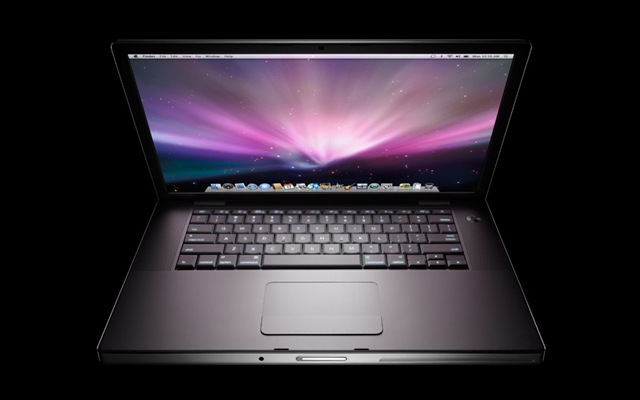
First it was the work iMac earlier this year. The trial machine ended up becoming an inseparable work partner. Not only Leopard is a first-class operating system but the iMac even runs Windows faster in VMWare than my original PC hardware did. I am now officially a Mac. I ditched my Lenovo laptop with its pathetic screen resolution (and you know how much screen space Visual Studio needs) for a brand new Macbook Pro (15.4" screen, 2.4GHz Core 2 Duo and 4Gb RAM). The machine simply screams of power. Visual Studio rocks on it in a VMWare Vista machine. Amazing screen resolution and with Leopard Spaces it only takes one keystroke and I switch from Leopard to Vista in no time. Can't wait to switch my home computer to a new 3.06GHz iMac this October - I think a great present for my 30th birthday!

I will keep you posted on how I get on but to get your appetite going here's a picture of the machine! GET A MAC - it doesn't just work - IT ROCKS!

design_gal05_20080226

Monday, 21 April 2008

Apologies + Windows XP SP3

To all my readers - I haven't been able to post anything for the last month. It has been quite a hard and difficult month in all fronts. But I do promise I will be back very soon. I have had a lot of demands for the Subversion installation articles. I promise I will be posting the remaining content on setting up Subversion and CruiseControl.NET very very soon.

Meanwhile enjoy downloading XP SP3 on the 29th of April. Microsoft just announced SP3 RTM!!!!

Sunday, 23 March 2008

iLove the iPhone

I finally got an iPhone through work for R & D. Namely trying to develop applications for the iPhone using the newly released iPhone SDK. This works really well with my new Apple iMac as the new SDK (which basically is Xcode) only works on a Mac.

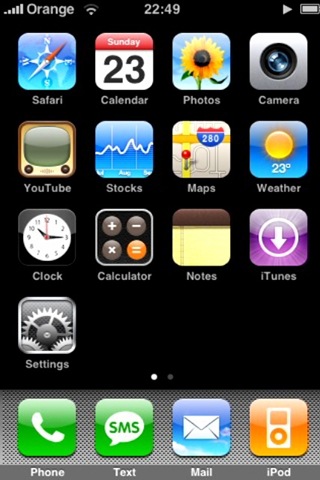
Here is a screen shot of my hacked iPhone working with my Orange sim card.

photo 

I will keep you posted on how I get on with my iPhone and the iPhone SDK.

Wednesday, 5 March 2008

Back from California to find IE8 Beta 1

Well San Francisco and Las Vegas were fantastic, but even better Internet Explorer 8 Beta 1 (IE8) is now available. You can download it here.

Well I will try to cover in a series of postings my experiences with it.

Installation

Not much changed here yet. As a matter of fact not much has changed generally with IE8's UI.

setup1

setup2

First Run

A new first run settings wizard walks you through the various different old and new settings available, such as Search, Apps and Safety Filter (aka Phising Filter).

setup3

Once you have completed the settings wizard you are prompted with the new IE8 Welcome Page, introducing you to the new features available such as IE7 Emulation mode and WebSlices.

IE7 Emulation

IE7 introduced a lot of "hacks" in order to maintain compatibility with previous versions. Subsequently this meant lack of Web Standards. IE8 now runs in Standards mode by default, but if you need to browse the Internet like IE7 then click the big IE7 Emulation button.

WebSlices

Another new feature, similar to that Safari offers on Mac OS X, is WebSlices. Developers can mark parts of web pages as "WebSlices" and enable users to monitor information they rely on as they move about the web. With a click in the Favourites bar, users see rich "WebSlice" visuals and developers establish a valuable, persistent end-user connection.

Finally when you browse to a web site, IE8 ensures you are sure of where you are by highlighting the domain name of the site - so hopefully Phising will become even more difficult.

ie81

ie82 

I will keep you posted with more as soon as I start using it more and more. So far my main work website works!!!

Monday, 11 February 2008

Mac OS X 10.5.2 Released

Apple just released the anticipated 10.5.2 update for Leopard. Among the myriad of fixes the highlights of this major update are:

- Airport: Improves connection reliability and stability
- Back to my Mac: Adds support for more third-party routers, as detailed in this article.
- Dock: Updates Stacks with a List view option, a Folder view option, and an updated background for Grid view.
- Desktop: Addresses legibility issues with the menu bar with an option to turn off transparency in Desktop & Screen Saver preferences.
- Desktop: Adjusts menus to be slightly-less translucent overall.
- iSync: Adds support for Samsung D600E and D900i phones.
- RAW Image: Adds RAW image support for several cameras, as detailed in this article.
- Safari: Addresses issues with Safari reliably resolving certain domains.
- Time Machine: Adds a menu bar option for accessing Time Machine features (the menu extra can be enabled in Time Machine preferences).
- Time Machine: Improves backup reliability when computer name contains slash or non-ASCII characters.
- Time Machine: Addresses issues in which some external drives are not recognized by Time Machine.

Get your update via Software Update or via a Combo Installer here. One more thing after installing 10.5.2 there is one more update Software Updates will find the Leopard Graphics Update. Get it either via Software Updates or here.

Let's hope I can now connect to the Internet via my corporate MS ISA proxy server. Fingers crossed.

Sunday, 10 February 2008

I Heart San Francisco

Well it is that time of the year again that I need my American fix. So I am off for 3 weeks to San Francisco, Las Vegas and possibly Seattle to visit friends and family. Very tight schedule ahead but really looking forward to it. Sneaky visit to Microsoft and Apple. Ever since I told people I am going over, my phone hasn't stopped ringing. Between the countless calls from Bill Gates and Steve Jobs, I am finding it hard to decide who I am having dinner with every evening. *Just Kidding* - Although a sneaky visit to Redmond is most likely as a good friend is a VP there. Can't wait to raid the Employee Store with its great discounts again this year with him! Finally I am so looking forward to seeing my all time favourite Bette Midler in Las Vegas on her opening night in Caesar's Palace.

See you in a few weeks.

Monday, 4 February 2008

Windows Vista SP1 & Windows Server 2008 hit RTM

According to the Microsoft Windows Vista blog, today Microsoft released Windows Vista SP1 to manufacturing. Unfortunately it will not be until mid-March before it hits Windows Update and becomes available for download.

Today also Windows Server 2008 made it to manufacturing as well. As of a few hours ago Microsoft published the final versions for download in their MSDN Subscribers' Download area.

Hopefully it wont be too long before Vista runs faster on my iMac thanks to the service pack.

Friday, 1 February 2008

Apple iMac - 2 weeks on

Well it has now been two weeks since my amazing new Apple iMac arrived. So far it is a match made in heaven. Still no solution to the MS ISA Proxy server issue (although googling the problem reveals a possible fix in Leopard 10.5.2, that's about to be released).

I am almost completely happy with VMWare Fusion as well. My corporate workstation image with Windows XP and Visual Studio 2008 is actually running far more reliably and fast than it did on my HP workstation. The virtual machine is configured to use both cores of the Intel Core 2 Duo Extreme *Intel Inside Jingle* and 2GB of physical RAM. This configuration is pretty similar to my original HP workstation. The only annoying thing with Fusion 1.1 (not a problem with Parallels though) is the lack of support for multiple monitors. Basically if you are using multiple monitors you can not use both of them at the same time with the emulated machine. You can not drag Windows/Linux/OS2 windows from one monitor to the other in Unity mode. Hopefully a fix is soon on its way as Parallels do explicitly offer that option with their Coherence feature.

I suppose unlike a Tiger or a Leopard or a Panther I have managed so far to change my stripes and spots without problems!

Tuesday, 22 January 2008

New Year - New Computer - New Apple

Well, there is always a first, there is always a new resolution and of course there is always one thing we all try to change every New Year. Well my one change this year is to not use a PC anymore, or shall I use the old style phrase "IBM compatible". Yes for the first time ever I've decided to take the plunge and use an Apple Computer as my main work computer. To be precise a brand new 24" iMac with a 2.8GHz Core 2 Duo Extreme processor and 4 GB of RAM. I am also using a second 19" monitor as well as an Apple Wireless mouse & keyboard. If you exclude the countless problems that Safari and Mac OS X have in dealing with Microsoft ISA proxy servers (standard Enterprise setup really), the machine is HOT!!! I ABSOLUTELY LOVE IT. And just to make you even more jealous here is a picture of it!

iMac

I am currently running Mac OS X Leopard 10.5.1 and VMWare Fusion 1.1 with Windows Vista and Windows XP. I have Visual Studio 2005 & 2008 and SQL Server 2005 all running as one big happy family. I am also testing Parallels 3.0 to see if it performs even better than VMWare. Currently when in "Unite" mode with VMWare (makes Windows apps look as if they are running under Mac OS X) all my applications, and especially Visual Studio, run better than my previous PC.

I will keep you posted on how I am getting on with it!!!

Tuesday, 25 December 2007

Merry Christmas & Happy New Year

I want to wish all my readers a Merry Christmas and a happy new year full of tons of coding without bugs!

Merry Christmas everyone.

Joe

Sunday, 25 November 2007

www.csharpblog.net

Yes I got a new address for this blog - www.csharpblog.net. I think it is quite cool that I managed to get this domain name!

You can update your favourites or just keep going to the existing one!

Thanks again for reading.

Joe

Subversion & Visual Studio 2008 - Part 1

Most .NET developers would be comfortable working with Visual SourceSafe (VSS) when it comes to source control. VSS is good but there are several problems with it and with Team Foundation Server (TFS). First of all they are all very expensive, do not offer a very good disconnected model ("meaning that it is quite hard to work offline"). VSS also expects you to pretty much exclusively check out a file before working on it, making it harder for large teams to work together. Finally VSS and TFS's automated build system are very heavy and do not really offer immediate deployment to development servers. But again that is only my opinion.

On the other hand Subversion (initiated in 2000 by CollabNet) is a very light, open-source and free alternative to VSS that requires minimal maintenance once installed and configured. A lot of large and well known organisations such as Google use Subversion. Arguably Subversion and CruiseControl.NET (CC.NET), a continuous build system, are more difficult to install and configure than VSS is. There's more to it that just double-clicking an executable file like with VSS. Hopefully the series of articles on this subject will aim to provide you with a solid guide on how to configure them.

During this series, I will be using Virtual PC to demonstrate how to setup a Subversion server and a development machine. I will be setting up two different virtual machines, one running Windows Server 2008 RC0 Web Edition (this will host the Subversion server) and one running Windows Vista Home Premium with Visual Studio 2008 (this will be development workstation).

1. Setting up Apache Web Server on Subversion server machine

This guide assumes that you have already installed and configured successfully Windows Server 2008 (W2K8) RC0 Web Edition. Below is a screen shot of my server's about screen.

aboutserver

Please note that you can use Standard Edition for this as well. As a matter of fact you do not need any of the web features of W2K8 if you are only going to use this server as a Subversion repository. I decided to use the Web Edition because I will be using this server later on in this series as a web development server.

Subversion on its own gives you access remotely to the source repository only via the custom Subversion SVN protocol (default port 3690). But you can still access your repository via the HTTP/HTTPS protocols as well, with the help of a web server. Unfortunately using IIS with Subversion is extremely difficult and almost impossible. The server of choice, recommended by Subversion developers, is Apache a free web server that can run as well on a Windows platform as it does on Linux.

So once you have W2K8 installed and configured, you will need to first install Apache on your server. You can download Apache 2.0 here. I will be using version 2.0.61. There are later versions than this but are not as stable with Subversion. There are two options here you can either download a version without SSL support or with Open SSL support. I will be using the non SSL version. If though you will be providing access to your repository remotely over HTTPS then you should install the Open SSL version. I chose to download apache_2.0.61-win32-x86-no_ssl.msi.

Once you have downloaded the Apache setup executable you can go ahead and start the setup. It is straight forward really. Just fill in your server details as in the screenshot below and then choose Typical Install.

apacheinstall1

Once the installer completes you should see a new tray icon appear and if all has gone smoothly the icon should be a green play-like icon.

apacheicon

You can check your server's installation by navigating in your browser to http://localhost. If you had IIS installed prior to installing Apache there is bound to be a conflict as the default port for both is port 80. To avoid this please change the default port of IIS prior to installing Apache. You can afterwards change Apache to listen to a different port (i.e. 81).

In the next article I am going to show you how to setup Subversion to work with Apache.

Friday, 23 November 2007

Subversion can play well with .NET

I don't know about you, but I never really liked Visual Source Safe. Don't get me wrong I love Microsoft products, but somehow I do not think VSS cuts the mustard.

Subversion is a much more light-weight, open-source, disconnected source control system that works and plays really well with Visual Studio 2008 and .NET.

In the coming days I will try to give a comprehensive guide in setting up Subversion, automated builds and integrating it with Visual Studio 2008.

The articles are to be organised as follows:

  1. Subversion & Visual Studio 2008
  2. CruiseControl.NET - Automated Builds
  3. Visual Studio 2008 Subversion Integration
  4. Other CruiseControl.NET Integration Stuff (FxCop etc.)

I hope you find this interesting. I think it is really good stuff and an excellent development environment. But let me know what you think before I start writing!

Wednesday, 21 November 2007

Forgot that connection string?

There is an excellent web site for all of us who can not possibly memorise and remember all the different settings for connection strings. This web site includes pretty much every type of connection string you might need to generate from SQL Server 2005 to Oracle, Paradox even IBM DB2! Really cool, easy and free to use.

Bookmark it now!!!!

http://www.connectionstrings.com